
Stop Scripting Your Setup: Why You Should Try Nix Home Manager
We have all been there. You get a fresh laptop, or maybe you finally decide to wipe your current machine to start over. The first hour feels great, but then the reality sets in: you have to configure everything again.
Even if you are organized, it is a pain. You might have a repository of dotfiles and a few shell scripts you wrote three years ago to bootstrap your environment. You run them, and they mostly work. But then you start noticing the cracks. It doesn’t feel exactly like your other machine.
Maybe you start working and realize you are missing a specific config file for a tool you rarely touch but desperately need. Or perhaps you spent hours months ago researching an obscure flag to make a CLI utility behave a certain way, and now that setting is gone. Your muscle memory betrays you because your keyboard shortcuts aren’t quite right.
Then there is the issue of secrets. You can’t exactly check your SSH keys or API tokens into a public GitHub repository. So you end up manually copying files from a USB drive breaking any hope of full automation.
The problem gets worse if you juggle multiple machines, like a corporate MacBook for work and a Linux desktop at home. Keeping them in sync is a full-time job. Even if you manage to copy the config files, the underlying software might be different. You might have ripgrep version 13 on one machine and version 11 on the other, and you don’t realize the syntax has changed until your scripts fail.
There is a better way
This is usually where people talk about Nix and NixOS. If you haven’t heard of Nix, it’s a package manager and language that focuses on reproducibility. NixOS is a Linux distribution built entirely around this concept.
But here is the thing: you don’t need to switch your operating system to NixOS to solve these problems.
If you are on a company-issued MacBook, you obviously can’t install a new OS. If you are on Ubuntu and don’t want to reinstall everything, that’s fine too. You can install the Nix package manager on any Linux distro or macOS.
Once you have Nix, you can use Home Manager.
Home Manager allows you to manage your user environment using the Nix language. Instead of running imperative commands (like apt install, brew install, or manually edit text files), you describe the state you want your machine to be in.
You write a single configuration file that says “I want these programs installed,” “I want Git configured with this email and these aliases,” and “I want my shell to look like this.”
Why it solves the headache
When you use Home Manager, your environment becomes portable code. You can apply that configuration to a new machine, and it will pull down exactly what you specified.
Syncing is automatic. Because the configuration is text, you can version control it. When you make a change to your vim configuration on your personal machine, you push it to your repo. When you get to work, you pull the repo, run the Home Manager switch command, and your work machine is instantly updated to match.
No more version mismatches. Nix allows you to pin packages to specific commits. If you need a specific version of Node.js or Python to make your workflow function, you declare it. Home Manager ensures that exact version is installed, regardless of what the underlying operating system thinks is “current.”
Safe experimentation One of the best features is the ability to roll back. Let’s say you decide to try out a totally different shell configuration or a new terminal emulator. You change your config and switch. If you hate it, you don’t have to spend hours undoing your mess. You just switch into the previous status and your system is exactly how it was five minutes ago.
					import cornerstoneTools from 'cornerstone-tools';
import cornerstone from 'cornerstone-core';

const BaseAnnotationTool = cornerstoneTools.importInternal('base/BaseAnnotationTool');
const { lengthCursor } = cornerstoneTools.importInternal('tools/cursors');

export default class MyCustomTool extends BaseAnnotationTool {
  constructor(props: any = {}) {
    const defaultProps = {
      name: 'MyCustomTool',               // nome univoco — usato come chiave nel toolState
      supportedInteractionTypes: ['Mouse', 'Touch'],
      configuration: {
        drawHandles: true,
        drawHandlesOnHover: false,
        hideHandlesIfMoving: false,
        renderDashed: false,
      },
      svgCursor: lengthCursor,            // cursore SVG mostrato quando il tool è attivo
    };
    super(props, defaultProps);
  }

  // Obbligatorio: restituisce l'oggetto dati iniziale della misura
  createNewMeasurement(eventData: any) {
    const { x, y } = eventData.currentPoints.image;
    return {
      visible: true,
      active: true,
      invalidated: true,
      handles: {
        start: { x, y, highlight: true, active: false },
        end:   { x, y, highlight: true, active: true },
        textBox: {
          active: false, hasMoved: false,
          movesIndependently: false, drawnIndependently: true,
          allowedOutsideImage: true, hasBoundingBox: true,
        },
      },
      cachedStats: {},
    };
  }

  // Obbligatorio: hit-testing per click e hover
  pointNearTool(element: HTMLElement, data: any, coords: any, interactionType: string) {
    if (!data?.handles?.start || !data?.handles?.end) return false;
    // … logica di prossimità
    return false;
  }

  // Obbligatorio: disegna sul canvas
  renderToolData(evt: any) {
    const { element, canvasContext } = evt.detail;
    const toolData = cornerstoneTools.getToolState(element, this.name);
    if (!toolData?.data?.length) return;
    // … draw
  }

  // Opzionale: calcola statistiche solo quando invalidated = true
  calculateCachedStats(data: any, viewport: any, image: any) {
    data.cachedStats = { /* … */ };
    return data.cachedStats;
  }
}
Il name in defaultProps è la chiave con cui il tool viene registrato nel toolState e referenziato in tutte le API (addToolState, getToolState, setToolActive). Deve essere univoco all’interno dell’applicazione.
2. Cosa sono le Callback
In CornerstoneTools, una callback è una funzione che viene invocata automaticamente dal framework in risposta a un evento specifico — interazione utente, cambio di stato dello strumento, o ciclo di rendering.
Non stai ascoltando eventi DOM grezzi. CornerstoneTools li intercetta, li arricchisce con contesto medico (coordinate immagine, pixel spacing, viewport state) e li consegna alle tue callback già “digeriti”.
					// Esempio minimale: intercettare la creazione di una misura
cornerstoneTools.setToolActive('Length', { mouseButtonMask: 1 });

element.addEventListener('cornerstonetoolsmeasurementcompleted', (e) => {
  const { measurementData } = e.detail;
  console.log('Nuova misura:', measurementData.length, 'mm');
});
Le callback hanno due forme principali:
Event listener sul DOM element di Cornerstone — pattern standard browser
Metodi override sullo strumento — ad es. createNewMeasurement, renderToolData, pointNearTool
3. Il Flusso di Evento di Cornerstone
Capire come un evento nasce, viene trasformato e consegnato è fondamentale per debuggare comportamenti inaspettati.
Input Utente (browser)
│
▼
┌───────────────────┐
│ DOM Event Raw │ mousedown / mousemove / click / touch…
└────────┬──────────┘
│
▼
┌───────────────────────────────┐
│ CornerstoneTools InputSource │ Normalizza input (mouse, touch, pointer)
│ (MouseEventHandlers etc.) │
└────────┬──────────────────────┘
│
▼
┌───────────────────────────────────┐
│ Store & ToolState │ Recupera lo strumento attivo
│ getToolState(element, toolName) │ e i dati già esistenti sull’immagine
└────────┬──────────────────────────┘
│
▼
┌──────────────────────────────────────────┐
│ Tool Method Dispatch │
│ pointNearTool? → handleSelectedCallback │
│ altrimenti → addNewMeasurement │
└────────┬─────────────────────────────────┘
│
▼
┌──────────────────────────────────────────┐
│ cornerstone.triggerEvent(element, …) │ Emette evento Cornerstone
│ e.g. MEASUREMENT_ADDED │ arricchito con eventData
└────────┬─────────────────────────────────┘
│
▼
┌──────────────────────────────────────────┐
│ cornerstone.updateImage(element) │ Invalida il canvas
│ → renderToolData() │ e ri-renderizza gli overlay
└──────────────────────────────────────────┘
Propagazione degli eventi
CornerstoneTools usa cornerstone.triggerEvent, che wrappa CustomEvent con bubbles: false di default. Gli eventi non propagano automaticamente al DOM padre — devi ascoltarli sull’element Cornerstone specifico.
4. EventData — Cosa ricevi ad ogni callback
Ogni evento Cornerstone ha un campo event.detail con struttura variabile per tipo. Ecco i campi più comuni.
					// Struttura base di eventData
element.addEventListener('cornerstonetoolsmeasurementadded', (event) => {
  const {
    toolName,          // 'Length', 'Angle', 'EllipticalRoi'…
    toolType,          // alias di toolName (deprecato ma presente)
    element,           // HTMLElement del viewport
    measurementData,   // oggetto dati specifico dello strumento
    image,             // oggetto immagine Cornerstone corrente
  } = event.detail;
});
measurementData — struttura tipica
{
  // Identificazione
  uuid: 'abc-123-…',           // ID univoco della misura
  toolName: 'Length',

  // Stato interazione
  active: true,                // true mentre l'utente sta disegnando
  visible: true,
  invalidated: true,           // true = cachedStats da ricalcolare

  // Handles — i punti di controllo drag-and-drop
  handles: {
    start: { x: 120, y: 45, highlight: false, active: false },
    end:   { x: 200, y: 90, highlight: false, active: false },
    textBox: {
      active: false,
      hasMoved: false,
      movesIndependently: false,
      drawnIndependently: true,
      allowedOutsideImage: true,
      hasBoundingBox: true,
    }
  },

  // Risultati calcolati (popolati da calculateCachedStats)
  length: 42.3,               // mm, se pixelSpacing disponibile
  cachedStats: { … },
}
Coordinate: pixel vs immagine vs canvas
Questo è uno dei punti più critici. CornerstoneTools lavora sempre in coordinate immagine internamente.
					// Coordinate canvas (pixel fisici del canvas HTML)
const canvasPoint = { x: event.clientX, y: event.clientY };

// → coordinate immagine (indipendenti da zoom/pan)
const imagePoint = cornerstone.canvasToPixel(element, canvasPoint);

// → coordinate canvas (per il rendering)
const backToCanvas = cornerstone.pixelToCanvas(element, imagePoint);
Gli handles in measurementData sono sempre in coordinate immagine. Il rendering li converte al momento del draw.
5. Tipologie di Callback
4.1 Callback del Ciclo di Vita dello Strumento
Gestiscono la nascita, modifica e morte di una misura.
Metodo / Evento | Quando viene chiamato |
|---|---|
createNewMeasurement(eventData) | Prima creazione — mousedown su canvas vuoto |
addNewMeasurement(evt, interactionType) | Orchestratore: chiama createNewMeasurement e gestisce il loop di drag |
MEASUREMENT_ADDED | Dopo che la misura è stata aggiunta al toolState |
MEASUREMENT_MODIFIED | Dopo ogni modifica (drag handle, move) |
MEASUREMENT_COMPLETED | Quando l’utente rilascia il mouse al termine della creazione |
MEASUREMENT_REMOVED | Dopo rimozione dal toolState |
					// Override createNewMeasurement nel tuo strumento custom
createNewMeasurement(eventData) {
  const { currentPoints, image } = eventData;
  return {
    visible: true,
    active: true,
    invalidated: true,
    handles: {
      start: {
        x: currentPoints.image.x,
        y: currentPoints.image.y,
        highlight: true,
        active: false,
      },
      end: {
        x: currentPoints.image.x,
        y: currentPoints.image.y,
        highlight: true,
        active: true,   // end è attivo → segue il mouse
      },
      textBox: { … }
    }
  };
}
4.2 Callback di Input (Mouse & Touch)
Queste callback sono metodi dello strumento che puoi sovrascrivere per personalizzare il comportamento.
Metodo | Trigger |
|---|---|
mouseDownCallback(evt) | mousedown sull’element |
mouseDownActivateCallback(evt) | mousedown quando lo strumento è Active e il punto NON è vicino a una misura esistente |
mouseMoveCallback(evt) | mousemove (strumento in Passive o Active) |
mouseDragCallback(evt) | mousemove durante drag (dopo mousedown) |
mouseUpCallback(evt) | mouseup |
mouseClickCallback(evt) | click singolo |
mouseDoubleClickCallback(evt) | doppio click |
					// eventData per gli eventi mouse
{
  event,                   // DOM Event originale
  which: 1,                // bottone mouse (1=left, 2=middle, 3=right)
  element,                 // HTMLElement
  image,                   // immagine Cornerstone
  currentPoints: {
    page:   { x, y },      // coordinate pagina
    image:  { x, y },      // coordinate immagine ← usi queste
    canvas: { x, y },      // coordinate canvas
    client: { x, y },
  },
  startPoints: { … },      // punto di inizio drag
  deltaPoints: { … },      // delta rispetto al frame precedente
  viewport,                // stato viewport corrente
  type: 'mousedrag',
}
4.3 Callback di Selezione e Interazione
Il meccanismo di selezione è il cuore del sistema di modifica.
Metodo | Ruolo |
|---|---|
pointNearTool(element, data, coords, interactionType) | Determina se le coordinate sono “vicine” alla misura |
handleSelectedCallback(evt, toolData, handle, interactionType) | Chiamata quando l’utente clicca su un handle specifico |
toolSelectedCallback(evt, toolData, interactionType) | Chiamata quando clicca sul corpo dello strumento (non su un handle) |
activeCallback(element, data) | Lo strumento o la misura diventa attiva |
					// pointNearTool — esempio per uno strumento linea
pointNearTool(element, data, coords, interactionType) {
  const hasStartAndEndHandles =
    data.handles && data.handles.start && data.handles.end;

  if (!hasStartAndEndHandles) return false;

  if (interactionType === 'mouse') {
    return (
      lineSegDistance(element, data.handles.start, data.handles.end, coords)
      < 25  // pixel di tolleranza
    );
  }
  // Per touch, tolleranza maggiore
  return lineSegDistance(element, data.handles.start, data.handles.end, coords) < 40;
}
4.4 Callback di Rendering
Metodo | Ruolo |
|---|---|
renderToolData(evt) | Disegna TUTTE le misure di questo strumento sul canvas |
calculateCachedStats(data, viewport, image) | Calcola statistiche (lunghezza, area, mean HU…) — chiamato solo se data.invalidated === true |
					renderToolData(evt) {
  const { element, canvasContext, image } = evt.detail;
  const toolData = cornerstoneTools.getToolState(element, this.name);

  if (!toolData || !toolData.data || !toolData.data.length) return;

  for (const data of toolData.data) {
    if (!data.visible) continue;

    // Ricalcola solo se necessario
    if (data.invalidated) {
      this.calculateCachedStats(data, evt.detail.viewport, image);
      data.invalidated = false;
    }

    // Converti handles da image → canvas per il draw
    const startCanvas = cornerstone.pixelToCanvas(element, data.handles.start);
    const endCanvas   = cornerstone.pixelToCanvas(element, data.handles.end);

    canvasContext.beginPath();
    canvasContext.moveTo(startCanvas.x, startCanvas.y);
    canvasContext.lineTo(endCanvas.x, endCanvas.y);
    canvasContext.strokeStyle = data.active ? 'yellow' : 'white';
    canvasContext.lineWidth = 2;
    canvasContext.stroke();
  }
}
6. Caso pratico: TPAAnnotationTool
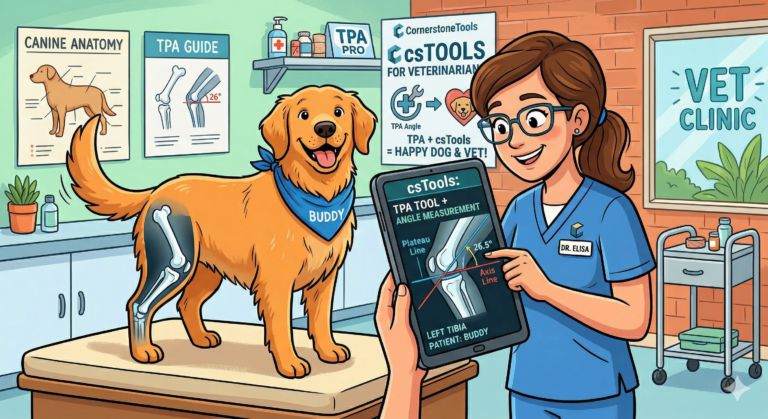
Il Tibial Plateau Angle (TPA) è una misura veterinaria che calcola l’angolo di inclinazione del plateau tibiale rispetto all’asse funzionale della tibia. È un esempio eccellente perché richiede un flusso di disegno multi-step che non si adatta al pattern standard di CornerstoneTools — e mostra come gestire stati complessi sovrascrivendo le callback di input.
Il problema del multi-step
Un tool standard (es. Length) ha un flusso semplice: mousedown → drag → mouseup. Il TPA richiede tre fasi distinte:
- FTA (Functional Tibial Axis) — linea dall’asse tibiale al plafond della caviglia
- MTP (Medial Tibial Plateau Line) — linea lungo il pendio del plateau mediale
- REF (Reference Line) — calcolata automaticamente: perpendicolare alla FTA, ancorata all’intersezione FTA∩MTP (rette infinite)
Per gestire questo flusso, l’implementazione usa una state machine esplicita:
					enum TPAState {
  IDLE = 0,
  FUNCTIONAL_AXIS_START = 1,   // dragging FTA
  FUNCTIONAL_AXIS_END = 2,     // FTA completa, attesa click MTP
  MEDIAL_PLATEAU_START = 3,    // dragging MTP
  MEDIAL_PLATEAU_END = 4,
  COMPLETE = 5
}
createNewMeasurement — struttura dati multi-handle
Il TPA ha sei handles (tre linee × due estremi) più quattro textbox, tutti inizializzati al punto di click. Il campo measurementState è salvato nell’oggetto dati — non solo nella classe — in modo che renderToolData possa sapere cosa disegnare anche su misure caricate da database:
					createNewMeasurement(eventData: EventData) {
  const { x, y } = eventData.currentPoints!.image!;

  return {
    visible: true,
    active: true,
    invalidated: true,
    handles: {
      // Passo 1: FTA
      ftaStart: { x, y, highlight: true, active: false },
      ftaEnd:   { x, y, highlight: true, active: true },  // segue il mouse
      // Passo 2: MTP
      mtpStart: { x: 0, y: 0, highlight: true, active: false },
      mtpEnd:   { x: 0, y: 0, highlight: true, active: false },
      // Passo 3: Reference Line (calcolata)
      refStart: { x: 0, y: 0, highlight: false, active: false },
      refEnd:   { x: 0, y: 0, highlight: false, active: false },
      intersectionPoint: { x: 0, y: 0 },  // FTA∩MTP
      // TextBox per ogni linea + angolo finale
      ftaTextBox: { … }, mtpTextBox: { … },
      refTextBox: { … }, tpaTextBox: { … }
    },
    cachedStats: { tpaAngle: '0', ftaLength: '0', mtpLength: '0' },
    measurementState: TPAState.IDLE   // ← salvato nei dati, non solo nella classe
  };
}
addNewMeasurement — orchestrazione multi-step
Invece di creare semplicemente una misura e fare drag, addNewMeasurement gestisce le transizioni tra stati. Viene chiamato ad ogni mousedown quando il punto non è vicino a una misura esistente:
					addNewMeasurement(evt: MeasurementMouseEvent) {
  const eventData = evt.detail;
  const { element } = eventData;

  switch (this.currentState) {
    case TPAState.IDLE:
      // Primo click: crea l'annotazione e inizia FTA
      this.currentAnnotation = this.createNewMeasurement(eventData);
      this.currentState = TPAState.FUNCTIONAL_AXIS_START;
      this.currentAnnotation.measurementState = this.currentState;
      cornerstoneTools.addToolState(element, this.name, this.currentAnnotation);
      break;

    case TPAState.FUNCTIONAL_AXIS_END:
      // Secondo click: inizia MTP dal punto corrente
      const { x, y } = eventData.currentPoints.image;
      this.currentAnnotation.handles.mtpStart = { x, y, highlight: true, active: false };
      this.currentAnnotation.handles.mtpEnd   = { x, y, highlight: true, active: true };
      this.currentState = TPAState.MEDIAL_PLATEAU_START;
      this.currentAnnotation.measurementState = this.currentState;
      cornerstone.updateImage(element);
      break;
  }
}
preMouseDownCallback vs mouseUpCallback — doppia strada
Il tool supporta due modalità di disegno: click-move-click e click-drag-release. La stessa transizione di stato deve avvenire in entrambi i casi, ma attraverso callback diverse.
preMouseDownCallback intercetta il click prima che addNewMeasurement venga invocato — permettendo di completare il passo corrente prima che ne inizi uno nuovo. mouseUpCallback completa il passo quando l’utente rilascia il mouse dopo un drag:
					// Percorso drag: mousedown → mouseDragCallback → mouseUpCallback
mouseUpCallback(evt) {
  if (!this.isDragging) return;
  this.isDragging = false;

  switch (this.currentState) {
    case TPAState.FUNCTIONAL_AXIS_START:
      // FTA completata via drag → attendi click per MTP
      this.currentState = TPAState.FUNCTIONAL_AXIS_END;
      this.currentAnnotation.handles.ftaEnd.active = false;
      this.updateCachedStats(eventData.image, element, this.currentAnnotation);
      break;

    case TPAState.MEDIAL_PLATEAU_START:
      // MTP completata via drag → calcola REF e angolo
      this.currentState = TPAState.COMPLETE;
      this.computeReferenceLineAndAngle(this.currentAnnotation);
      this.currentAnnotation = null;
      this.currentState = TPAState.IDLE;
      break;
  }
  cornerstone.updateImage(element);
}

// Percorso click: mousedown → preMouseDownCallback
preMouseDownCallback(evt) {
  switch (this.currentState) {
    case TPAState.FUNCTIONAL_AXIS_START:
      // Click senza drag: FTA disegnata via mousemove
      this.currentState = TPAState.FUNCTIONAL_AXIS_END;
      this.currentAnnotation.handles.ftaEnd.active = false;
      break;

    case TPAState.MEDIAL_PLATEAU_START:
      // Click finale: completa MTP e calcola tutto
      this.computeReferenceLineAndAngle(this.currentAnnotation);
      this.currentAnnotation = null;
      this.currentState = TPAState.IDLE;
      break;
  }
  cornerstone.updateImage(element);
}
mouseMoveCallback e mouseDragCallback — preview in tempo reale
Durante il disegno, entrambe le callback aggiornano il handle “end” attivo in base alla posizione corrente. La differenza è che mouseDragCallback imposta isDragging = true per distinguere la modalità drag dalla modalità click-move-click — impedendo a preMouseDownCallback di intervenire durante un drag in corso:
					mouseMoveCallback(evt) {
  if (!this.currentAnnotation || this.isDragging) return;
  const { x, y } = evt.detail.currentPoints.image;

  switch (this.currentState) {
    case TPAState.FUNCTIONAL_AXIS_START:
      this.currentAnnotation.handles.ftaEnd.x = x;
      this.currentAnnotation.handles.ftaEnd.y = y;
      break;
    case TPAState.MEDIAL_PLATEAU_START:
      this.currentAnnotation.handles.mtpEnd.x = x;
      this.currentAnnotation.handles.mtpEnd.y = y;
      break;
  }

  this.currentAnnotation.invalidated = true;
  cornerstone.updateImage(evt.detail.element);
}
computeReferenceLineAndAngle — la geometria del TPA
Questo è il cuore matematico del tool. La linea di riferimento è perpendicolare alla FTA e passa per il punto di intersezione tra le rette infinite FTA e MTP — non i segmenti disegnati:
					computeReferenceLineAndAngle(data: any): void {
  const { handles } = data;

  // Direzione FTA normalizzata
  const ftaDx = handles.ftaEnd.x - handles.ftaStart.x;
  const ftaDy = handles.ftaEnd.y - handles.ftaStart.y;
  const ftaMag = Math.sqrt(ftaDx**2 + ftaDy**2);
  if (ftaMag === 0) return;
  const ftaNx = ftaDx / ftaMag;
  const ftaNy = ftaDy / ftaMag;

  // Perpendicolare alla FTA
  const perpNx = -ftaNy;
  const perpNy =  ftaNx;

  // Intersezione FTA∩MTP (rette infinite, parametric intersection)
  const intersection = this.computeLineLineIntersection(
    handles.ftaStart, { x: ftaDx, y: ftaDy },
    handles.mtpStart, { x: mtpDx, y: mtpDy }
  );

  // Anchor = intersezione, fallback = mtpStart se parallele
  const anchor = intersection ?? handles.mtpStart;
  handles.intersectionPoint = anchor;

  // Reference Line: ±70px attorno all'anchor lungo la perpendicolare
  handles.refStart = { x: anchor.x - perpNx * 70, y: anchor.y - perpNy * 70 };
  handles.refEnd   = { x: anchor.x + perpNx * 70, y: anchor.y + perpNy * 70 };

  // TPA = angolo tra direzione MTP e Reference Line
  const dot = (mtpDx/mtpMag) * perpNx + (mtpDy/mtpMag) * perpNy;
  const angleDeg = Math.acos(Math.abs(dot)) * (180 / Math.PI);
  data.cachedStats.tpaAngle = angleDeg.toFixed(1);

  // Salva i vettori per il draw dell'arco
  data.cachedStats.mtpNx = (mtpDx/mtpMag).toFixed(6);
  data.cachedStats.mtpNy = (mtpDy/mtpMag).toFixed(6);
  data.cachedStats.perpNx = perpNx.toFixed(6);
  data.cachedStats.perpNy = perpNy.toFixed(6);
}
Il punto critico: l’intersezione viene calcolata sulle rette infinite, non sui segmenti disegnati. Questo è il comportamento clinicamente corretto — il plateau tibiale e l’asse funzionale si prolungano geometricamente oltre i punti segnati dall’utente.
renderToolData — rendering progressivo per stato
Il renderer usa measurementState per decidere cosa disegnare. Questo permette di visualizzare la misura parziale durante la creazione e gestisce correttamente il caricamento da storage:
					renderToolData(evt) {
  toolData.data.forEach((data: any) => {
    const { handles, cachedStats, measurementState } = data;
    const color = toolColors.getColorIfActive(data);

    // Linea FTA — blu, visibile dal primo passo
    if (measurementState >= TPAState.FUNCTIONAL_AXIS_START) {
      drawLine(ctx, element, handles.ftaStart, handles.ftaEnd,
        { color: 'rgb(80, 200, 255)', lineWidth: 2 });
      drawHandles(ctx, eventData, [handles.ftaStart, handles.ftaEnd],
        { color: 'rgb(80, 200, 255)' });
      // Label "FTA" — solo quando completa
      if (measurementState >= TPAState.FUNCTIONAL_AXIS_END) {
        drawLinkedTextBox(ctx, element, handles.ftaTextBox, 'FTA', …);
      }
    }

    // Linea MTP — arancio, visibile dal secondo passo
    if (measurementState >= TPAState.MEDIAL_PLATEAU_START) {
      drawLine(ctx, element, handles.mtpStart, handles.mtpEnd,
        { color: 'rgb(255, 160, 60)', lineWidth: 2 });
      if (measurementState >= TPAState.COMPLETE) {
        drawLinkedTextBox(ctx, element, handles.mtpTextBox, 'MTP', …);
      }
    }

    // Reference Line + arco + label TPA — solo a misura completa
    if (measurementState >= TPAState.COMPLETE) {
      drawLine(ctx, element, handles.refStart, handles.refEnd,
        { color, lineDash: [6, 4] });
      this.drawAngleArc(ctx, element, handles, cachedStats, color);
      drawLinkedTextBox(ctx, element, handles.tpaTextBox,
        [`TPA = ${cachedStats.tpaAngle}°`], …);
    }
  });
}
L’arco angolare viene disegnato in canvas coordinates tramite pixelToCanvas sull’intersectionPoint, e sceglie automaticamente il lato acuto confrontando quale direzione del vettore MTP (normale o opposta) forma l’arco minore con la Reference Line.
pointNearTool — hit testing su handle e linee
A differenza di tool semplici che verificano solo la prossimità a un segmento, il TPA deve testare sia gli handle individuali che i segmenti, e farlo rispettando lo stato corrente della misura:
					pointNearTool(element, data, coords, interactionType): boolean {
  if (!data?.handles) return false;
  const distance = 30;
  const { handles } = data;

  // Test prossimità agli handle puntiformi (quadratica, senza sqrt)
  for (const h of [handles.ftaStart, handles.ftaEnd, handles.mtpStart, handles.mtpEnd]) {
    if (this.isPointNearHandle(element, h, coords, distance)) return true;
  }

  // Test distanza dal segmento FTA
  if (this.isPointNearLine(element, handles.ftaStart, handles.ftaEnd, coords, distance))
    return true;

  // Test MTP — solo se il passo è stato raggiunto
  if (data.measurementState >= TPAState.MEDIAL_PLATEAU_START) {
    if (this.isPointNearLine(element, handles.mtpStart, handles.mtpEnd, coords, distance))
      return true;
  }

  return false;
}
La distanza punto-segmento usa la proiezione parametrica clampata a [0, 1] — così cliccare fuori dal segmento ma vicino all’estensione della retta non attiva il tool:
distanceToLineSegment(point, lineStart, lineEnd): number {
  const dx = lineEnd.x - lineStart.x;
  const dy = lineEnd.y - lineStart.y;
  const t = Math.max(0, Math.min(1,
    ((point.x - lineStart.x) * dx + (point.y - lineStart.y) * dy)
    / (dx*dx + dy*dy)
  ));
  return Math.sqrt(
    (point.x - (lineStart.x + t*dx))**2 +
    (point.y - (lineStart.y + t*dy))**2
  );
}
7. Flussi Comuni
7.1 Flusso di Creazione — tool standard (addNewMeasurement)
mousedown (canvas vuoto, nessuna misura vicina)
│
▼
mouseDownActivateCallback(evt)
│
▼
addNewMeasurement(evt, ‘mouse’)
│
├─→ createNewMeasurement(eventData)
│ └─→ ritorna oggetto measurementData con handles
│
├─→ cornerstoneTools.addToolState(element, toolName, measurementData)
│
├─→ triggerEvent → MEASUREMENT_ADDED
│
├─→ cornerstone.updateImage(element) ← primo render
│
└─→ [loop] mouseDragCallback
│ • aggiorna handles.end con currentPoints.image
│ • data.invalidated = true
│ • cornerstone.updateImage(element)
│
▼
mouseUpCallback
│
├─→ data.active = false
├─→ triggerEvent → MEASUREMENT_COMPLETED
└─→ cornerstone.updateImage(element)
7.2 Flusso di Modifica — handle drag
mousedown (vicino a un handle)
│
▼
pointNearTool() → true
│
▼
handleSelectedCallback(evt, toolData, handle, ‘mouse’)
│
├─→ handle.active = true
├─→ toolData.active = true
├─→ activeCallback(element, toolData)
│
└─→ [loop] mouseDragCallback
│ • handle.x = currentPoints.image.x
│ • handle.y = currentPoints.image.y
│ • data.invalidated = true
│ • triggerEvent → MEASUREMENT_MODIFIED
│ • cornerstone.updateImage(element)
│
▼
mouseUpCallback
│
├─→ handle.active = false
├─→ toolData.active = false
└─→ cornerstone.updateImage(element)
7.3 Flusso TPA multi-step
[Stato: IDLE]
mousedown → addNewMeasurement → crea annotation → FUNCTIONAL_AXIS_START
│
▼
[Stato: FUNCTIONAL_AXIS_START]
mouseMoveCallback / mouseDragCallback → aggiorna ftaEnd → updateImage
│
▼ (drag release) ▼ (click senza drag)
mouseUpCallback preMouseDownCallback
│ │
└───────────────┬───────────────────┘
▼
FUNCTIONAL_AXIS_END
│
▼
[Stato: FUNCTIONAL_AXIS_END]
mousedown → addNewMeasurement → inizializza mtpStart/mtpEnd → MEDIAL_PLATEAU_START
│
▼
[Stato: MEDIAL_PLATEAU_START]
mouseMoveCallback / mouseDragCallback → aggiorna mtpEnd → updateImage
│
▼ (drag release) ▼ (click senza drag)
mouseUpCallback preMouseDownCallback
│ │
└───────────────┬───────────────────┘
▼
computeReferenceLineAndAngle()
→ refStart/refEnd + tpaAngle
│
▼
COMPLETE → IDLE
currentAnnotation = null
8. Concetti Chiave
8.1 Binding degli Handle
Gli handle sono oggetti plain JavaScript nel measurementData. Il sistema li gestisce tramite moveHandle e moveAllHandles:
					// moveHandle — muove un singolo handle
cornerstoneTools.moveHandle(
  evtDetail,
  toolName,
  annotation,
  handle,
  () => { /* onInteractiveChange — chiamato ad ogni frame */ },
  () => { /* doneMovingCallback — chiamato al mouseup */ }
);

// moveAllHandles — muove tutta la misura (pan)
cornerstoneTools.moveAllHandles(
  evt,
  toolData,
  toolData.handles,
  null,
  interactionType,
  () => { /* done */ }
);
8.2 Invalidation — il flag invalidated
Il pattern invalidated è un’ottimizzazione fondamentale per evitare calcoli costosi ad ogni frame:
					// Quando qualcosa cambia geometricamente:
data.invalidated = true;
cornerstone.updateImage(element);

// In renderToolData:
if (data.invalidated) {
  this.calculateCachedStats(data, viewport, image);
  data.invalidated = false;
}
Nel TPA, computeReferenceLineAndAngle viene chiamata esplicitamente solo al completamento di ogni passo — non ad ogni mousemove — per lo stesso motivo.
8.3 Coordinate — il sistema a tre livelli
┌─────────────────────────────────────────────────────────────┐
│ PAGE / CLIENT coords │
│ • Relative alla finestra browser │
│ • Usate per posizionare tooltip e popover │
├─────────────────────────────────────────────────────────────┤
│ CANVAS coords │
│ • Pixel fisici del <canvas> HTML │
│ • Usate per il draw (canvasContext.lineTo ecc.) │
├─────────────────────────────────────────────────────────────┤
│ IMAGE coords ← il tuo sistema di riferimento │
│ • Indipendenti da zoom, pan, flip, rotation │
│ • Salvate in measurementData.handles │
│ • Convertite al render con pixelToCanvas() │
└─────────────────────────────────────────────────────────────┘
Regola d’oro: salva sempre in coordinate immagine, converti solo quando disegni.
					// ✅ Corretto — indipendente da zoom e pan
data.handles.ftaEnd.x = eventData.currentPoints.image.x;
data.handles.ftaEnd.y = eventData.currentPoints.image.y;

// ❌ Sbagliato — le coordinate canvas cambiano con zoom/pan
data.handles.ftaEnd.x = eventData.currentPoints.canvas.x;
// Nel TPA, drawAngleArc converte intersectionPoint con pixelToCanvas prima di context.arc().
8.4 State Machine vs flag booleani
Il TPA mostra chiaramente perché uno stato complesso merita un enum dedicato invece di flag booleani separati:
					// ❌ Fragile — combinazioni impossibili, logica distribuita
let ftaDrawn = false;
let mtpStarted = false;
let isDragging = false;
let isComplete = false;

// ✅ Robusto — stato unico, transizioni esplicite
enum TPAState { IDLE, FUNCTIONAL_AXIS_START, FUNCTIONAL_AXIS_END, … }
Salvare measurementState nell’oggetto dati (non solo nella classe) è cruciale: permette a renderToolData di renderizzare correttamente anche le misure caricate da database o da sessioni precedenti, senza dover ricostruire lo stato da flag separati.
8.5 Tool State: dove vivono i dati
					// Struttura interna
{
  [element]: {
    [toolName]: {
      data: [
        { uuid, handles, active, visible, invalidated, measurementState, … },
      ]
    }
  }
}

// API pubblica
cornerstoneTools.addToolState(element, toolName, measurementData);
cornerstoneTools.getToolState(element, toolName);        // → { data: […] }
cornerstoneTools.removeToolState(element, toolName, data);
cornerstoneTools.clearToolState(element, toolName);
Il toolState è per-element e per-toolName. Più viewport che mostrano la stessa immagine hanno toolState indipendenti — sincronizzazione manuale se necessario.
9. Checklist per Strumenti Custom
Quando implementi un nuovo strumento che estende BaseAnnotationTool, assicurati di gestire:
- createNewMeasurement — struttura iniziale degli handles
- pointNearTool — hit-testing per click e hover
- renderToolData — draw sul canvas, conversione coordinate, gestione invalidated
- calculateCachedStats — metriche costose, solo se invalidated
- handleSelectedCallback / toolSelectedCallback — risposta alla selezione
Se il tuo strumento ha un flusso multi-step come il TPA, aggiungi:
- Una state machine esplicita (enum) sia nella classe che nel measurementData
- Override di mouseMoveCallback per il preview in tempo reale
- Override di preMouseDownCallback per intercettare click prima di addNewMeasurement
Gestione separata di drag (mouseUpCallback) e click (preMouseDownCallback) per la stessa transizione di stato
					import cornerstoneTools from 'cornerstone-tools';
const BaseAnnotationTool = cornerstoneTools.importInternal('base/BaseAnnotationTool');

export default class MyMultiStepTool extends BaseAnnotationTool {
  private currentState: MyState = MyState.IDLE;
  private currentAnnotation: any | null = null;
  private isDragging = false;

  constructor(props: any = {}) {
    super(props, { name: 'MyMultiStepTool', supportedInteractionTypes: ['Mouse', 'Touch'] });
  }

  createNewMeasurement(eventData) { /* … */ }
  addNewMeasurement(evt) { /* gestisce transizioni stato */ }
  preMouseDownCallback(evt) { /* completa passo corrente prima del prossimo */ }
  mouseMoveCallback(evt) { /* preview in tempo reale */ }
  mouseDragCallback(evt) { /* aggiorna handle attivo + isDragging = true */ }
  mouseUpCallback(evt) { /* completa passo via drag */ }
  pointNearTool(element, data, coords, interactionType) { /* hit test */ }
  renderToolData(evt) { /* rendering condizionale per stato */ }
}
10. Registrare e Attivare il Tool in Larvitar
Larvitar è un toolkit DICOM per CornerstoneJS che astrae l’inizializzazione degli strumenti, la gestione dei viewport e il lifecycle delle immagini. Espone una API di alto livello che wrappa cornerstoneTools con un sistema di tool default configurabili e una funzione registerExternalTool dedicata ai tool custom.
Registrazione
Il custom tool va registrato prima di aggiungere i tool al viewport, così Larvitar lo include automaticamente nel ciclo addDefaultTools. La funzione registerExternalTool accetta il nome del tool e la classe, e la aggiunge sia al registro interno dvTools che all’oggetto DEFAULT_TOOLS:
					import { initializeCSTools, registerExternalTool, addDefaultTools, setToolActive }
  from 'larvitar';
import MyCustomTool from './tools/MyCustomTool';

// 1. Inizializza l'ambiente cornerstoneTools
initializeCSTools();

// 2. Registra il tool custom prima di aggiungere i tool al viewport
registerExternalTool('MyCustomTool', MyCustomTool);

// 3. Aggiungi tutti i tool (default + il tuo) al viewport
addDefaultTools('viewer');  // 'viewer' è l'id dell'elemento HTML del viewport

// 4. Attiva il tool
setToolActive('MyCustomTool');
// Se vuoi registrarlo ma non includerlo in addDefaultTools — ad esempio perché lo attivi solo su certi viewport — puoi chiamare addTool manualmente dopo la registrazione:
import { initializeCSTools, registerExternalTool, addTool, setToolActive } from 'larvitar';
import MyCustomTool from './tools/MyCustomTool';

initializeCSTools();
registerExternalTool('MyCustomTool', MyCustomTool);

// Aggiunge il tool solo a un viewport specifico
addTool('MyCustomTool', {}, 'viewer');

// Attiva su tutti i viewport o su un sottoinsieme
setToolActive('MyCustomTool', { mouseButtonMask: 1 }, ['viewer']);
Stati del tool in Larvitar
Larvitar espone quattro funzioni per gestire lo stato del tool, corrispondenti agli stati di CornerstoneTools:
Funzione | Stato | Effetto |
|---|---|---|
setToolActive(name, options?, viewports?) | Active | Il tool risponde all’input e disegna |
setToolEnabled(name, viewports?) | Enabled | Render visibile, nessuna interazione |
setToolPassive(name, viewports?) | Passive | Hover e selezione, nessun disegno attivo |
setToolDisabled(name, viewports?) | Disabled | Invisibile, nessuna interazione |
Esempio completo con TPAAnnotationTool
					import { initializeCSTools, registerExternalTool, addDefaultTools, setToolActive,
         setToolDisabled } from 'larvitar';
import TPAAnnotationTool from './tools/TPAAnnotationTool';

// Setup iniziale (tipicamente all'avvio dell'app o del componente viewer)
initializeCSTools({ showSVGCursors: true });
registerExternalTool('TPAAnnotation', TPAAnnotationTool);
addDefaultTools('dicom-viewer');

// Quando l'utente clicca "Misura TPA"
setToolActive('TPAAnnotation', { mouseButtonMask: 1 }, ['dicom-viewer']);

// Quando l'utente cambia strumento
setToolDisabled('TPAAnnotation', ['dicom-viewer']);
setToolActive('Wwwc', { mouseButtonMask: 1 }, ['dicom-viewer']);
Il mouseButtonMask: 1 indica il tasto sinistro del mouse. Larvitar usa questo valore nei DEFAULT_MOUSE_KEYS per gestire l’attivazione condizionale in base a modificatori (shift, ctrl) — il tuo tool custom segue lo stesso schema senza configurazione aggiuntiva.